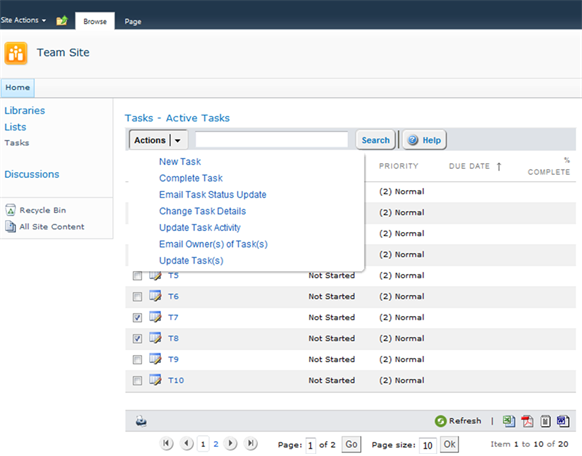
Once they are activated from within the Site Collection features, the process for adding widgets is as simple as adding any native SharePoint list or library web part. This will take you less than a minute but here is how to do it step by step in case it’s new for you:
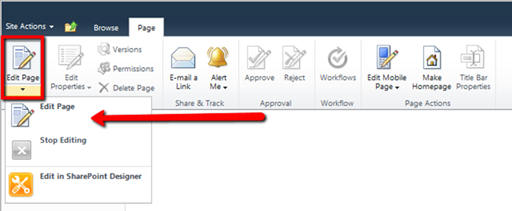
1. Click
on the Page section in the Ribbon Bar on any page in any native SharePoint site
and choose Edit Page.
2. Click
on the page where you want to insert the Widget, choose Add a web part,
and the Ribbon bar will change to: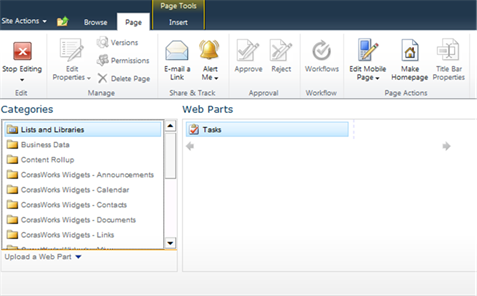
3. Select
the type of Widget based on List or Library type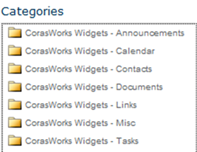
4. The
select the best Widget to meet your needs…..don’t worry about selecting one you
don’t know what it does because you can simply delete it if it doesn’t work for
you.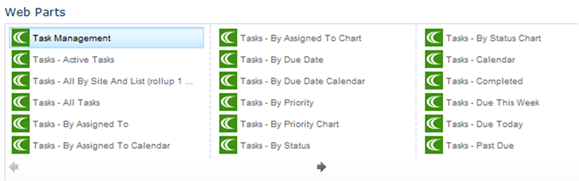
5. Don’t
forget to click Add! For example we are selecting “Tasks – Active Tasks”
and the result is: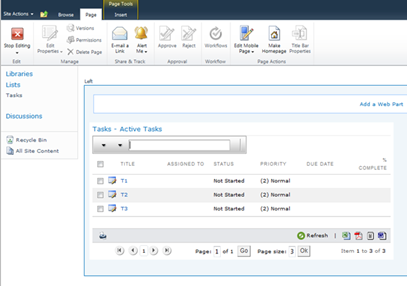
6. Stop
editing and go to a different page and come back (so it refreshes the
screen properly, we minimize post-backs to give you the fastest possible
results) and ready to start working.